
Unboxing and Placement Tips for Your Sawgrass Printer
Welcome to your all-in-one guide for setting up the Sawgrass SG500/SG1000 printer! Whether you're starting a new sublimation printing business or upgrading your equipment, proper setup is key. In this guide, we’ll walk you through unboxing, optimal placement, ink and paper loading, connecting your SG500/SG1000, and routine maintenance to ensure high-quality prints and smooth operation. Say goodbye to SG500/SG1000 connectivity issues and hello to consistent, professional results.
Unboxing Your Sawgrass SG500/SG1000 Printer
What's Inside the Box?
When you open your SG500/SG1000 printer package, ensure the following components are present:
- SG500/SG1000 Printer unit
- Power cord
- USB cable
- Install Kit with ink and QR code to Setup and Guides
Each item is essential for a smooth SG500/SG1000 setup.

Initial Inspection and Setup
Before you plug in anything, complete these initial setup steps:
- Remove all protective tapes and packaging foam from the printer exterior and interior.
- Check for visible damage. If something looks off, report it immediately.
- Place the printer on a stable, level surface.
- Plug in the power cord
Performing this initial check helps prevent issues like SG500/SG1000 print quality problems or startup errors.
Optimal Placement for Your SG500 Printer
Environmental Considerations
The SG500/SG1000 thrives in the right environment. Consider these placement tips:
- Ventilation: Choose a space with good airflow to prevent overheating.
- Dust-Free Zone: Keep it away from high-traffic or dusty areas.
- No Direct Sunlight: Avoid UV exposure to protect internal electronics.
- Moisture-Free: Place it away from windows, sinks, and humidifiers.
Pro Tip: Maintain room temperature between 65–80°F (18–27°C) for optimal print quality.
Space and Accessibility
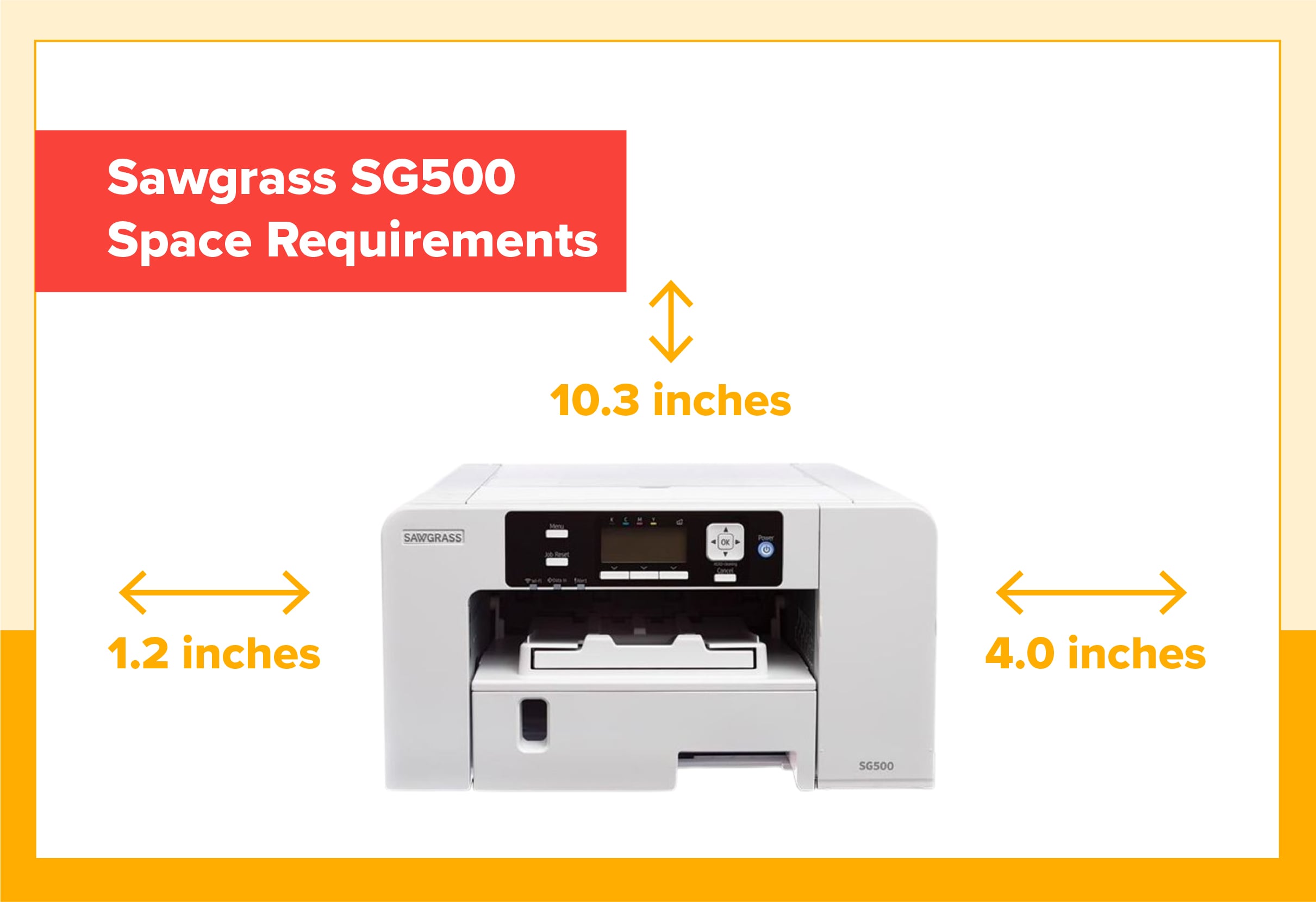
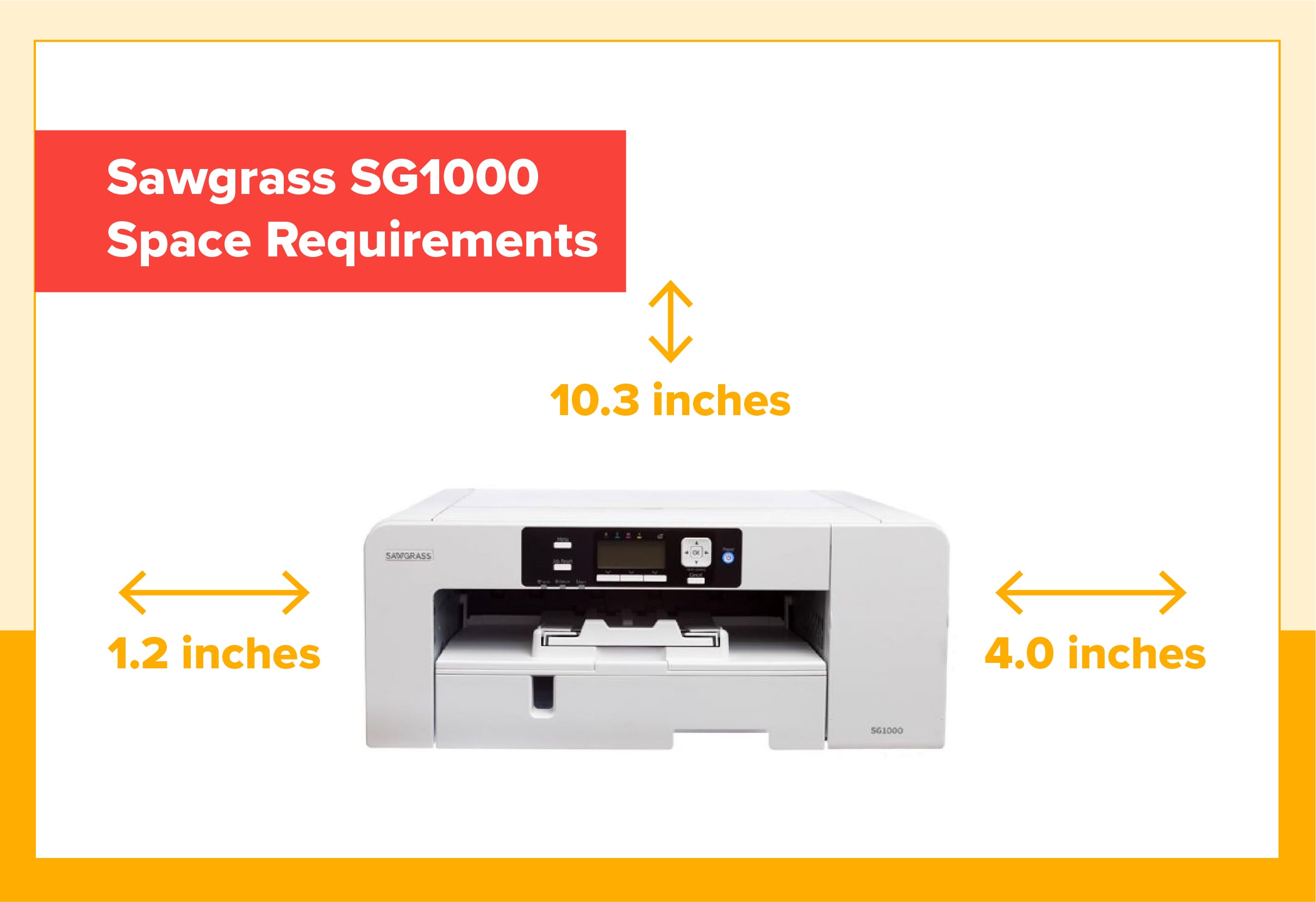
Allow space around your printer to meet SG500/SG1000 setup space requirements:
- Leave 4–6 inches on all sides for airflow.
- Ensure top clearance for easy paper refills.
- Place on a stable surface capable of supporting at least 30 lbs.
- Ensure front-facing access for maintenance tasks.
Installing Ink Cartridges and Loading Paper
Ink Cartridge Installation
To properly install your SG500/SG1000 ink cartridges:
- Open the ink cartridge compartment.
- Unwrap each cartridge and gently shake it.
- Insert each cartridge into the color-coded slot until it clicks.
- Close the compartment securely.
- Turn the printer on. Allow the printer to run the ink charging process.
Pro Tip: Only use genuine Sawgrass cartridges to ensure compatibility and avoid SG500/SG1000 print quality issues.
Loading Sublimation Paper
Here’s your SG500/SG1000 paper loading guide:
- Open the paper tray and adjust the guides on the side and front.
- Insert paper print side down when using the standard tray.
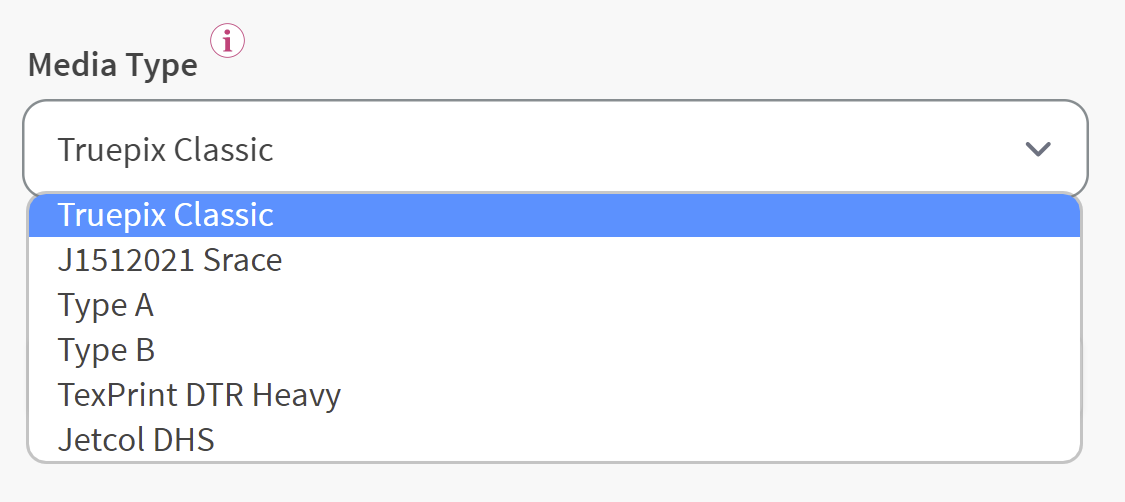
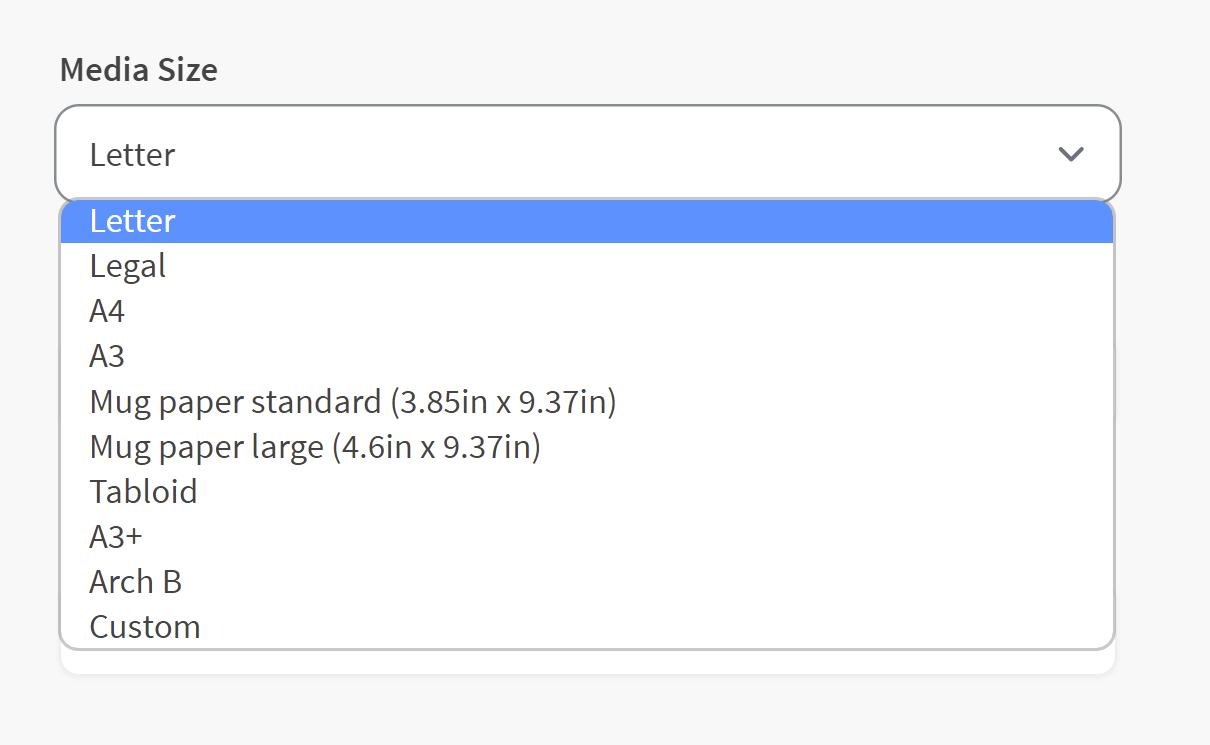
Select the correct paper type (e.g., TruPix (ImageRight), TexPrint, etc.) in the print manager.
Connecting Your Printer
USB and Wi-Fi Setup
USB Connection:
- Connect the USB cable to your printer and PC.
- Install the necessary driver via the download online.
- Confirm connection through device manager.
Wi-Fi Setup:
- Access the printer’s network settings via the control panel.
- Choose your Wi-Fi network and enter the password.
- Wait for a successful connection message.
Pro Tip: Still having connectivity issues? Double check your firmware to see if an update is needed. This could fix Wi-Fi bugs and improve signal strength.
Installing Sawgrass Print Utility
To install Sawgrass Print Manager:
- Visit the Sawgrass Get Started Page.
- Choose your operating system.
- Download and install the software.
- Log in with your Sawgrass account.
- Follow prompts to complete the SG500/SG1000 software setup.
Pro Tip: This tool is essential for color management and optimal print results.
Performing Your First Print
Selecting the Right Settings
To ensure perfect output on your SG500/SG1000 first print:
- Choose the correct paper type in Print Utility.
- Set print quality to High Quality for vibrant colors.
- Ensure Color Management and Color Mode are to your desired results (Photographic, Vivid, Grayscale, Custom)
Troubleshooting Initial Print Issues
Common Problems & Solutions
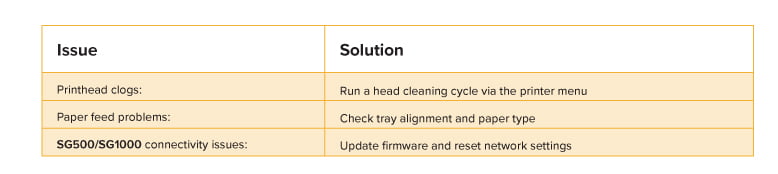
- Color mismatch: Recheck ICC profile and media type settings.
- Paper jams: Adjust paper guides and reload paper.
- Low print quality: Run a nozzle check and clean the printhead.
Pro Tip: SG500 troubleshooting first print? Refer to Sawgrass’s interactive support portal for guided fixes.
Regular Maintenance and Troubleshooting
Routine Maintenance Tasks
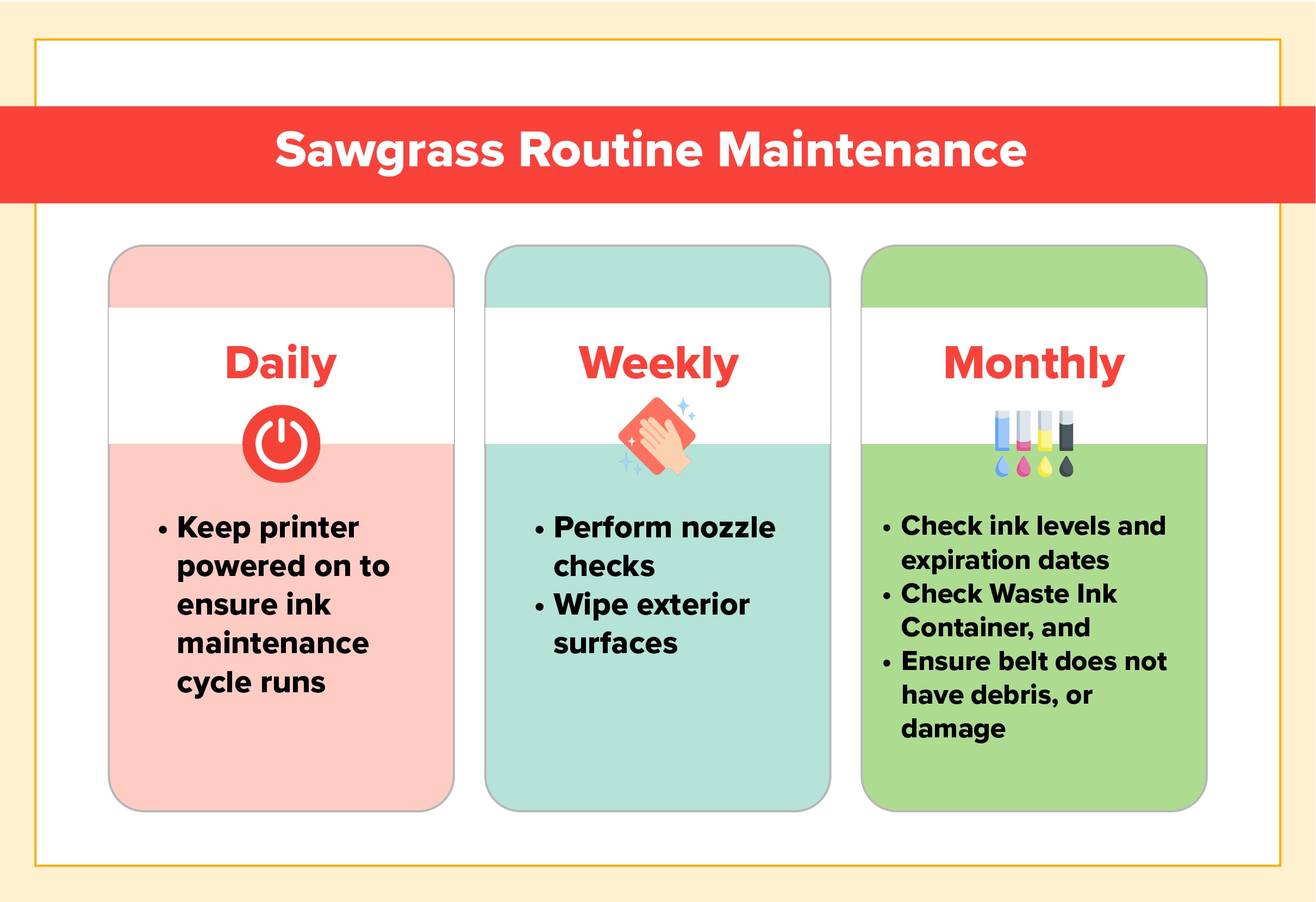
Keep your SG500/SG1000 running smoothly with this checklist:
Daily:
- Keep printer powered on to ensure ink maintenance cycle runs.
Weekly:
- Perform nozzle checks.
- Wipe exterior surfaces.
Monthly:
- Check ink levels and expiration dates.
- Check Waste Ink Container.
- Ensure belt does not have debris, or damage.
Pro Tip: Visit the new Sawgrass support portal for interactive video guides.
FAQs
-
What should I do if my Sawgrass printer displays a "Service Code" error during setup?
-
Answer: Refer to the specific error code in the user manual or Sawgrass support site to identify the issue and follow the recommended troubleshooting steps.
-
Can I use third-party ink cartridges with the Sawgrass systems?
-
Answer: No. Only genuine Sawgrass ink cartridges should be used to ensure optimal performance and avoid potential damage to the printer.
-
How often should I perform maintenance on my Sawgrass printer?
-
Answer: Regular maintenance should be performed as per the user manual, typically including daily, weekly, and monthly tasks to keep the printer in good condition.
-
What is the recommended environment for placing the Sawgrass printer?
-
Answer: Place the printer in a well-ventilated, dust-free area away from direct sunlight and moisture, ensuring adequate space around it for airflow and maintenance.
-
How do I connect my SG500/SG1000 printer to a Wi-Fi network?
-
Answer: Use the printer's control panel to navigate to the network settings, select your Wi-Fi network, and enter the password to establish a connection.
Need Help?
Still stuck?
Reach out to our Sawgrass Care Team, or tap the Help button on the bottom right of the page for live support.