
Heat Transfer Paper FAQ
1. Can You Use a Laser Printer for Heat Transfer Paper?
Yes — but only if you use laser-compatible heat transfer paper. Regular inkjet transfer paper will not work in a laser printer and may damage the machine.
2. Can You Use Transfer Paper with a Laser Printer?
Yes, you can use transfer paper with a laser printer, but it must be specifically labeled for laser printers. Laser printers use toner and heat, which require different paper coatings than inkjet printers.
3. Inkjet or Laser Printer for Heat Transfers — Which Is Better?
For most users, inkjet printers are the better choice for heat transfers because they offer:
- Lower upfront cost ($150–$500)
- More vibrant colors
- More transfer paper options
Laser printers are better for:
- High-volume printing
- Faster print speeds
- Smudge-resistant prints
- Variety of substrates
4. Laser vs. Inkjet Heat Transfer Paper — What’s the Difference?
The main difference is how the paper works:
- Inkjet transfer paper: Absorbs liquid ink
- Laser transfer paper: Designed for toner and high heat
Important: You must match the transfer paper with the correct printer type.
5. Can You Use Inkjet Transfer Paper in a Laser Printer?
No. Inkjet transfer paper can melt inside a laser printer due to high fuser temperatures and cause serious damage.
6. Can You Use a Laser Printer for Inkjet Transfer Paper?
No. Laser printers require special laser transfer paper. Inkjet paper is not heat-resistant and is incompatible.
7. Can You Print Iron-On Transfers with a Laser Printer?
While you can print designs, it is highly recommended to use a heat press for application. Inconsistent pressure from irons can lead to poor results.
8. What Is the Best Printer for Heat Transfer T-Shirts?
It depends on your needs:
- Beginners: Inkjet printers (Epson EcoTank, Canon PIXMA)
- High-volume: Color laser printers (Crio Powderless DTF+)
- Professional: Sublimation or DTF printers
9. Best Inkjet Printer for Heat Transfers
- Epson EcoTank series (low ink cost)
- Canon PIXMA series (excellent color quality)
10. Best Laser Printer for Heat Transfers
- Crio Powderless DTF+
Ensure compatibility with brands like Forever or Neenah.
11. What Is Inkjet Heat Transfer Paper?
A coated paper used to transfer printed designs onto fabric using heat (typically 350–375°F for 20–30 seconds).
12. What Is Laser Transfer Paper?
Laser transfer paper is designed for toner printers and high heat. It is used for:
- Dark garments
- Self-weeding transfers
- Commercial printing
- Specialty media like stickers, tattoos, and waterslide paper
13. Can You Use a Laser Printer for Heat Transfer T-Shirts?
Yes — especially with:
- Self-weeding transfer paper
- Dark fabric systems
14. Inkjet or Laser Printer for T-Shirts — Which Should You Choose?
- Inkjet: Best for beginners and detailed prints
- Laser: Best for speed and bulk production
15. What Is Self-Weeding Transfer Paper?
A type of transfer paper that removes excess background automatically during pressing.
- Ideal for dark garments
- Great for complex designs
- Professional finish
16. Can You Print on Transfer Paper with a Laser Printer?
Yes — but only with laser-compatible transfer paper. Always check specifications.
17. What Is the Temperature for Heat Transfer Paper?
- Light fabrics: 350–375°F for 20–30 seconds
- Dark fabrics: 200–330°F for 25–35 seconds
18. Can You Use a Color Laser Printer for Heat Transfers?
Yes. Color laser printers are commonly used for bulk and commercial transfer printing.
19. Heat Transfer Vinyl vs Transfer Paper
- Transfer paper: Printed design applied with heat
- HTV: Cut vinyl applied with heat
HTV is more durable, while transfer paper is better for full-color designs.
20. Can You Use Laser Printers for Fabric Transfer?
Yes — when paired with the correct laser transfer paper.
21. What Is the Best Printer for Transfer Paper?
- Inkjet: Best for beginners and high-detail designs
- Laser: Best for speed and volume
22. What Happens If You Use the Wrong Transfer Paper?
- Printer damage
- Paper melting
- Paper jams
- Poor transfer quality
23. Should You Use Inkjet or Laser for Heat Transfer?
23.1 Inkjet Advantages
- Higher print quality
- More paper options
- Softer feel and better color
- Easy setup
Ink types:
- Dye ink: May bleed in wash
- Pigment ink: More water-resistant and durable
23.2 Laser Advantages
- Faster printing speeds
- Cost-effective for bulk
- No ink bleeding
- Supports self-weeding transfers
Limitations:
- High fusing temperatures can cause jams
- Compatibility issues with some papers
- Not all printers handle transfer paper well
24. Final Recommendation
Choose based on your business needs:
- Go with inkjet for quality and flexibility
- Go with laser for speed and volume
Always test transfer paper before production. Sample packs help you find the best match for your printer and ensure optimal results.
What is the Difference Between Inkjet Papers and Laser Papers?
The main difference between inkjet and laser papers, besides the type of printer that is used, is the self-weeding capability of laser papers that inkjet papers do not have.
Inkjet heat transfer papers transfer the whole sheet which can be either transparent (papers for light fabrics) or completely opaque (papers for dark/colored fabrics). For that reason, more often than not, the design has to be trimmed with scissors or a vinyl cutter. The durability and image quality of inkjet heat transfer papers are excellent for this type of application and the start-up costs are lower. Another bonus is that you can print anything from black and white designs to full-color photographs.
The limitations are greatest with inkjet heat transfers for dark/colored fabrics when it comes to detail work. Because the design must be lifted off the carrier and placed on the shirt before pressing, designs with a lot of lettering or small disconnected pieces are tedious and difficult to work with. The opaque papers have a unique look and thickness which is not suitable for those who want a "screen printed feel".
Inkjet heat transfer paper is excellent for:
- Durable transfers
- Simple logos
- Photographs
- Low startup costs
- Great compatibility with the majority of inkjet printers
Laser heat transfer papers are revolutionary due to their self-weeding (no cutting) capabilities and with white toner printers in the market, the options are limitless. Self-weeding papers give you the option to design with as much detail as you'd like without having to worry about cutting or weeding the design. Papers for light fabrics are especially easy: just print, press on your shirt and peel away the backing, revealing your image on the garment. Papers for dark fabrics are similar with an added extra step of transferring adhesive to your image prior to pressing onto garments. Durability and color are comparable to inkjet papers, with some papers excelling in quality!
The downside of laser self-weeding papers is limitation in color if printing with regular CMYK printer. These types of papers do not contain a white base or film carrier, therefore any white or very light colors of the design will have to be printed with white toner, which is only made for select few OKI & Crio printer models. If using a regular CMYK printer (which most of the printers on the market are), you are limited to only bright, bold designs. Photographs or light gradients will not transfer well. These limitations are no longer the case if you are printing with a white toner printer.
Additionally, laser printers operate on heat to fuse the color onto the paper and with certain heat transfer papers, that may cause an issue if you are running a printer with temperatures that are hotter than 350F° or too cool/not enough fusing power. Some heat transfer papers come pre-coated with an adhesive which may soften and jam in the printer. Printer compatibility is something to be mindful of with laser heat transfer paper.
Laser heat transfer paper is excellent for:
- Long lasting transfers
- Simple and detailed logos, lettering, complex designs with multiple pieces
- Faster production time / no need to cut or weed design
- Screen printed look and feel with some papers/transfer design only
- The preferred choice for complex artwork for dark/colored garments in combination with white toner OKI & Crio printers
Note: Not ALL laser transfer papers are self-weeding. Please double check prior to purchasing.
How Do I Get Started with Heat Transfer Paper?
Heat transfer papers allow you to create your own customer clothing, bags, mousepads, and many other fabric items without the expense and labor of your average screen-printing set-up! They are also very useful when a customer needs only a few of these items imprinted and other printing methods do not allow for this to be done cost effectively. Simply design your image, print it onto one of our quality transfer papers and transfer it onto your garment using heat. It's just that easy!
Equipment/Items Needed:
- Inkjet or laser printer
- Artwork or photograph
- Heat transfer papers
- Heat press (commercial swing-away press for best results). With some papers, you can use a conventional home/hand iron to press heat transfer papers. However, for the softest and longest-lasting results, we highly recommend the use of a commercial heat press.
- Garment or other fabric items to imprint. Polyester and cotton blends are the most likely compatible fabric blends with heat transfer papers and vinyl products.
- Vinyl cutter (recommended) for non-self-weeding papers, such as inkjet papers. Some heat transfer papers transfer an entire sheet unless they are trimmed down - i.e., leaving the dreaded "white box" around your images - for the highest consistency and detail of quality, as well as speed in trimming away excess transfers from your design, a vinyl cutter is often a recommended accessory tool in a t-shirt print shop.
How large can/should I print when designing t-shirts?
Standard sizes of heat transfer paper include 8.5" x 11" (Letter) and 11" x 17" (Tabloid), but we also offer rolls and European sizes such as A3 and A4 on select papers. Not all printers can print up to 11" x 17" however, so do check with the manufacturer or distributor on maximum print sizes. Would 8.5" x 11" be large enough for your business? Look into the sizes of shirts you're most likely to sell -- this size would work perfectly for children's wear to an adult size small or medium, but you may need a larger size to accommodate large or extra-large shirts.
How do I press heat transfer papers?
Once your image is ready to be printed you may need to reverse (mirror) the orientation of the image, depending on the transfer paper being used. If you are using a heat transfer paper for light colors, then you will need to reverse or mirror your image's orientation so that your image prints out backward onto the paper. This is especially critical if you have text in your design. The text should be backward on screen or on the printout. Ideally, the program or printing options will have an opportunity for you to reverse the image.
Since most opaque papers are pressed face-side up, there is usually no need to print the image backward, but it’s always important to read the included directions for the specifics of what needs to be done. It's also a good idea to print a preview copy of your image onto regular copy paper before printing it on the transfer paper. This will help you verify that the image will print in the correct orientation, doesn't fall into your no-print zone (when using registration marks) and is sized appropriately, as the on-screen view can be deceiving. Also, remember that the colors you see on your screen will not always be exactly what prints out.
Majority of heat transfer papers for laser printers will need to be printed in reverse, to transfer in the correct orientation on the blank.
As with any desktop publishing project, consider the color of the item you are pressing onto when selecting colors for your designs. This is where you may need to decide to use an opaque transfer paper rather than a regular heat transfer paper. It’s a good idea to test your design on “scratch fabric” before applying it to your final t-shirt or another garment. Some fabrics may require more heat and pressure than others and may not show off your design as well as you expected. Therefore, it is best to determine the best specifications for pressing before you press your final product.
How do I design the t-shirt graphics?
The final, but often most important, part of your t-shirt is the design of the image. You can create original artwork from scratch, scan in photos or clip art to customize, or even use photographs from a digital camera with almost any graphics or creative printing program. However, if you want color consistency and accuracy, we suggest using a program intended for design (popular design programs include CorelDraw, Adobe Photoshop, and Adobe Illustrator). Not only will this allow you to use the best available tools to create or enhance your image, but it will also enable you to tweak color settings if necessary. For beginners of these programs, there are a huge number of tutorials and help online for free to get you started in these programs.
What Do you Consider A "Light" or "Dark" Garment?
When determining which type of paper is right for your project, aside from the type of printer used to produce it, you will need to know whether to use the transfer paper for light or dark colors. Heat transfer papers for "light" fabrics will have a very thin polymer layer and will work on light colored garments only. On the other hand, transfer papers for "dark" fabrics are thicker and have a more opaque white background, and they will work on any color of garment. However, because they are thicker in hand on the fabric, most people choose to use the light transfer paper when they can to have the lightest possible feel on the shirt.
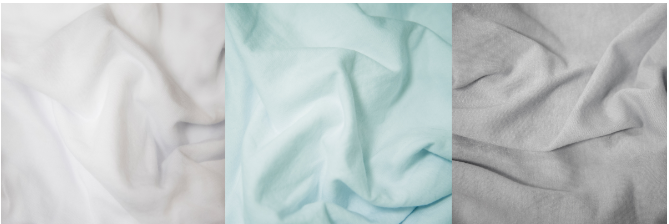
A "light" garment is any fabric that is white, beige/natural, or a very light grey such as heather grey. Some subtle tints of colors may also work well but we recommend testing a design first.
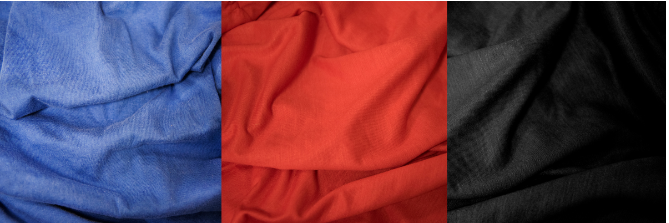
A "dark" garment is a fabric of nearly any color on which satisfactory results with light transfer paper cannot be achieved on.
Can you transfer a "light" transfer paper to a colored garment? Absolutely you can, but bear in mind that since ink, and "light fabric" heat transfer papers are transparent to a degree, some or all of your image may take on the color of the fabric. For instance, transferring a blue image to a pastel pink shirt will likely end up with a purple image instead.
What Does "Self-Weeding" Heat Transfer Paper Mean?
Self-weeding (no-cut) heat transfer papers are laser printer compatible papers that transfer only the printed image without the need to cut or trim away the background.
Most papers for light/white garments are a one-step process, meaning that the sheet you print on already has a layer of adhesive and is ready to press on your T-shirt right away. Papers for dark and colored garments need to be more opaque therefore require a thicker layer of adhesive. These are a two-step process: the sheet you print on is not coated and the adhesive comes on a secondary sheet.
How Do I Get Rid of the "White Box" Around my Image?
When using some heat transfer papers, the entire sheet will transfer, leaving a 'white box' around your image, creating an unsightly, visible outline. To achieve a 'border-free' transfer, you can do one of the following:
- Some papers, especially the light fabric transfer papers such as JetPro SoftStretch and TechniPrint EZP, have very light backgrounds and the effect of the transfer's border can be reduced with trimming by hand with a pair of scissors and a lot of patience. It is, however, a time-consuming process that can be tedious and often imperfect.
- Another common method of removing the background/white border from around the image is using a vinyl cutter to trim around the outer edge of the printed image so that the excess can be weeded away much like heat transfer vinyl. This requires a vinyl cutter that has an optical eye as well as design software capable of setting up and printing registration marks with the image.
- You can switch to laser heat transfer printing. Most laser transfers on the market transfer ONLY your image, such as the Forever Laser Dark. This method does have its limitations, however, as these types of border-free transfers are not great for transferring photographs or images with gradients or very light colors unless you have a white toner printer. Make sure that your laser printer doesn't run too hot or cold as the proper fusing temperatures are required for thicker media.
Why is my Design Not Transferring on my T-Shirt?
Uneven pressure or temperature
Uneven pressure or temperature can result in poor image transfers regardless of the type of heat transfer paper used. Heat press machines over time decrease in performance and it is a fairly common problem with older heat presses to have cold spots or to no longer apply the pressure that the read out says (or even if you go by feel). Check with your manufacturer to see what re-calibration steps you can take to tune up your press.
Some papers require heavy pressure that only higher end commercial presses can provide, and pressure is a common problem with small hobby presses.
Double check and follow exact instructions
Every paper is different and requires different amounts of time and temperature and various peeling methods. Laser papers that are self-weeding may call for a warm peel, which means waiting a specific amount of time before peeling. Some papers even require rubbing the back of the paper prior to peeling for best results. Double check the instructions that came with your paper.
Expired paper
Heat transfer paper does have an expiration date. If it is stored in a cool, low humidity place, the shelf life of every paper is about one year. Anything past one year from date of purchase would be considered expired and will need to be replaced if it causes any transfer problems that can't be resolved.
Color compatibility with self-weeding papers
Some papers are better suited for photographs while others are great for detailed, bright designs. Laser transfer papers that are self-weeding and are printed through a regular CMYK printer for example will not be able to transfer white or very light shades simply because the printer doesn't print white and the light areas of your design are not dense enough. A non-self-weeding paper would be better suited for designs with white or light areas, or upgrading to a Crio white toner printer.
What safety certifications have your papers passed?
Neenah Colenhove and Forever Technical Products have achieved OEKO-TEX® Standard 100 Class 1 certification on heat transfer papers widely used in decorated T-shirts. OEKO-TEX is an important, internationally recognized testing and certification protocol for products used in the textile industry. The certification process tests the products and certifies that harmful substances are not present. The Product Class I designation certifies that the limits are met for children’s wear.
For 20 years, the OEKO-TEX Standard 100 has been a signal to textile products manufacturers, retailers and consumers that certified products are safe for human use and are free from harmful levels of dangerous substances such as pesticides, formaldehyde, lead and other heavy metals, and carcinogenic dyestuffs. OEKO-TEX’s list of concerning substances has grown from 100 to more than 300 over the past two decades.
Neenah Paper Heat Transfer Papers OEKO-TEX Certified Products are:
- Laser printable heat transfer papers: Laser One Opaque, Techni-Print
- Self-weeding heat transfer papers: Image Clip Laser Light, Image Clip Laser Dark heat transfer papers
- Ink jet printable heat transfer papers: 3G Jet Opaque, Jet Dark, Jet-Pro SoftStretch
"Neenah’s customers, as well as their retailers and consumers, have high expectations for our heat transfer papers; and we are committed to exceeding them. OEKO-TEX is one important component of that promise." Gerry Rector, Neenah Paper adds "Our voluntary use of independent third party certifications like OEKO-TEX Standard 100 provides assurance that our products are of the highest quality and that they do not pose health concerns for the people who interact with them--whether it’s in the manufacturing facility, in the store, or at home."
OKEO-TEX is a registered trademark of Okeo-Tex Association.